


AI Video Generator - OpenVideo
4.455.00 Reviews
App Specs
- Version
- 3.3.0
- Updated On
- License
- Free
- Downloads
- 50,000+
- Developer
- 88 Tech
- Categories
- Art & Design
- Platform
- Android
Screenshots
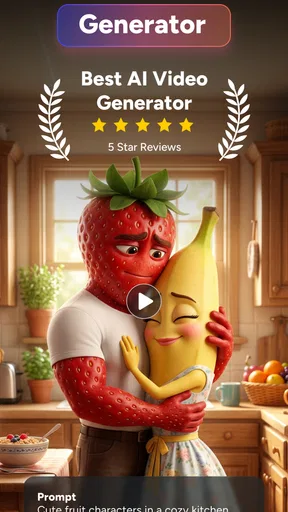
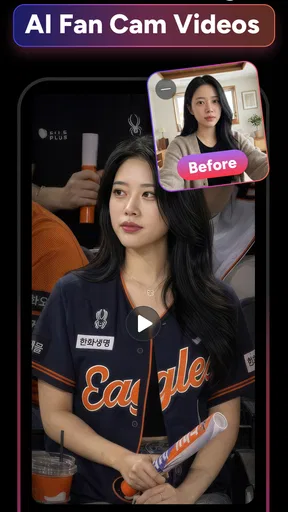
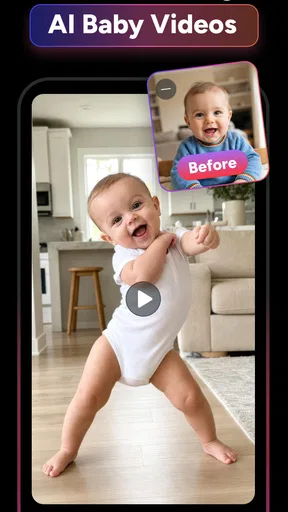
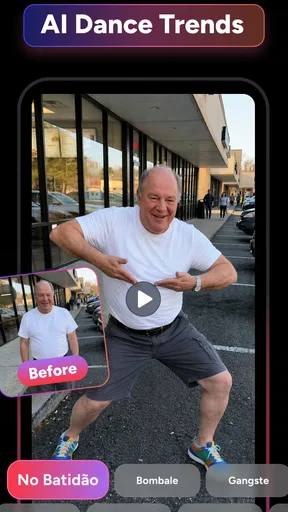
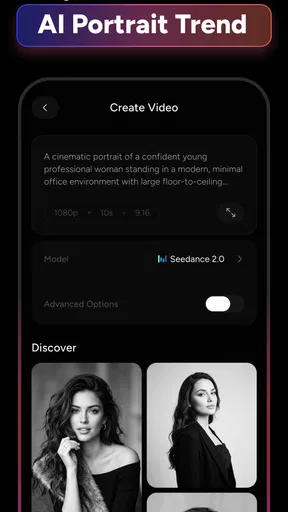
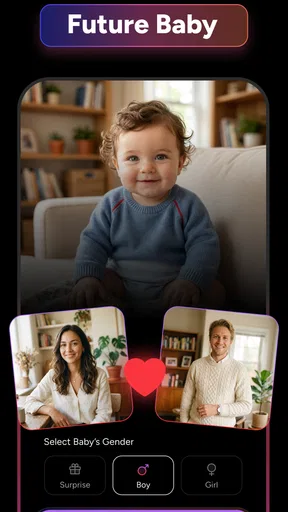
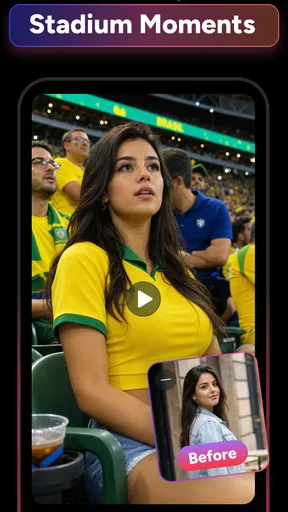
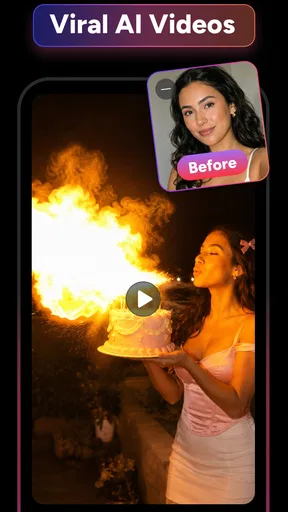
 Analysis by AppCompare
AI Video Generator - OpenVideo is the kind of art and design app I reach for when I have an idea for a short visual but no patience for a full editing timeline. I can begin with a written prompt or a photo, then use the app’s AI-focused workflow to turn that starting point into a video concept. That makes it appealing for quick experiments, social posts, mood pieces, and visual drafts rather than traditional, frame-by-frame production.
After spending time with it, my main takeaway is simple: OpenVideo is most useful when speed and experimentation matter more than exact control. It can help move an idea from “I should make something” to a shareable-looking clip, but it does not replace a complete video editor when timing, continuity, sound design, or precise composition are the priority. The experience also changes noticeably depending on your connection, because the central AI work is not the sort of task I would expect a phone to handle entirely by itself.
How the AI video workflow feels on a phone
The app comes from 88 Tech and sits in the Art & Design category. Its focus is narrower than a general editor: instead of asking me to arrange clips, trim every scene, and manually build a project, it starts with an instruction or an image and tries to create motion from that input. That difference is important. I see OpenVideo as an idea generator and visual shortcut first, and as a finishing tool second.
Text prompts are a natural entry point for someone who has a visual in mind but lacks footage. I can describe a setting, a mood, or an animation direction without searching through stock clips. Photo-to-video work is useful in a different way. A still image can become a moving presentation piece, a visual greeting, or a more engaging post. The best results depend on giving the app a clear starting point rather than expecting it to understand an entire campaign from a vague sentence.
One practical lesson I learned is to separate the creative brief from the technical request. Instead of packing every wish into one long prompt, I would first decide what the viewer should notice, then describe the subject, movement, atmosphere, and framing in that order. This makes it easier to judge what went wrong when a result feels unfocused. If the output misses the point, changing one element at a time is more useful than rewriting everything blindly.
That approach also helps with image-based work. A photo with one obvious subject gives the system a cleaner foundation than a crowded snapshot containing several people, signs, and competing backgrounds. For a product image, for example, I would prepare the picture first, keeping the object clear and leaving enough surrounding space for movement. The app can then be used to explore motion ideas without asking it to solve poor composition at the same time.
The interface is aimed at quick creation, which I appreciate on a small screen. I do not need the mindset of a professional editor to begin. Still, the simplicity has a trade-off: AI generation can feel like a conversation with a creative assistant that makes its own decisions. If you need a subject to move on an exact beat, remain identical across several shots, or follow a carefully planned camera path, a conventional editor or a more specialized production tool will usually give you better control.
Worth Reading Before You Choose

EA SPORTS FC Mobile 26 Is a Bigger Football Game, but It Takes Time

Flipboard Shows What News Apps Must Do Beyond the Feed

Switching to Android Auto Means Rethinking Your Driving Routine

Google Calendar Makes a Crowded Week Easier to Manage

Ludo King Makes the Most of the Minutes Between Plans

Baby Panda World Brings Quick Play to Modern Phones, but Its Game Library Feels Busy
Why the connection matters during generation
The most noticeable connectivity issue is not browsing the app; it is waiting for the AI work to happen. A prompt or image has to be sent for processing, and the result comes back later. On a strong connection, this feels like a normal creative pause. On a weak or changing mobile signal, the same action can feel uncertain because I am waiting to learn whether the request is still being processed or needs to be tried again.
This makes OpenVideo a better fit for a place with dependable internet than for a journey through patchy coverage. I would happily use it at home, in a café with stable Wi-Fi, or before a presentation while connected to a reliable network. I would be more cautious about starting several generations on a train, in a crowded venue, or while moving between cellular towers. The creative idea may be ready, but the app still depends on the connection to turn that idea into a result.
There is also a planning difference between AI generation and ordinary editing. With a standard editor, I can often keep cutting even when the internet disappears because the raw clips and timeline are already on the device. With OpenVideo, the most important step is the generation request itself. That means a connection problem can interrupt the part of the process that matters most, not merely delay a download or a preview image.
I would therefore avoid treating every tap on the generate button as casual. If I am testing a prompt, I first make sure the wording is reasonably clear and the source image is suitable. That small pause saves frustration when the network is slow, and it also reduces the temptation to repeat the same request without understanding why the first attempt was unsatisfying.
Using it in everyday mobile situations
OpenVideo makes the most sense in short creative sessions. Imagine I am preparing a small announcement for a community event. I have a poster image, but a static picture feels dull in a messaging group. I could use the photo-to-video route to explore a gentle animated version, review the result on my phone, and decide whether it is lively enough to share. The app is valuable here because it lowers the barrier between an existing image and a more dynamic presentation.
Another realistic use is a quick concept for a small business owner. Before paying for a full production, I might want to test whether a product idea looks better as a dramatic close-up, a calm lifestyle scene, or a colorful animated setting. Text generation can provide rough visual directions that help me choose a style. I would not treat those drafts as a guaranteed final advertisement, but they can make an otherwise abstract discussion much easier.
For students and hobby artists, the app can be a useful sketchbook with motion. A written idea that would remain trapped in a notebook can become something visible enough to critique. The important word is “sketchbook.” I would use the results to explore atmosphere, composition, and storytelling possibilities, then move to a dedicated editor if the project needs polished sequencing or detailed sound work.
Mobile use also exposes the app’s limits. A phone is convenient for entering a prompt, selecting a photo, and checking a result, but it is not always the best place to compare many variations. Small differences in framing or movement can be hard to spot on a compact display. I prefer to generate a modest number of purposeful alternatives, save the strongest direction, and do any serious finishing in a tool designed for editing.
People who create while traveling should think about both signal quality and battery use. AI video work involves uploading or processing visual material and receiving generated output, so it is not the same as writing a note offline. I would prepare prompts and source images before leaving a dependable connection, then reserve actual generation for moments when the network is stable. That workflow is less exciting than creating anywhere, but it is much less likely to leave me stuck halfway through an idea.
What happens when a request goes wrong
AI output can fail creatively even when the connection is perfect. A subject may not look as intended, motion may feel unnatural, or the scene may become too busy. I found that the quickest recovery is not always another random prompt. First, I identify the single biggest problem: subject identity, movement, camera direction, or overall mood. Then I simplify the instruction and try again with that problem in mind.
For photo-to-video projects, recovery starts with the source image. If the original contains an unclear subject or an awkward crop, changing the wording may not solve the underlying issue. I would choose a cleaner image, remove visual clutter where possible, and make the intended focal point obvious. This is one of the less obvious ways to improve results: the input often deserves as much attention as the prompt.
Connectivity failures require a different response. If a generation appears to stall, I would avoid immediately tapping the action repeatedly. I would check whether the connection has changed, wait briefly, and then reopen or retry only when the request clearly has not completed. Repeating actions during an unstable connection can create confusion about which attempt produced which result. Keeping a short note of the prompt and the image used is surprisingly helpful when I need to reconstruct a failed session.
I also recommend treating each successful result as a checkpoint. If a version is close to what I want, I would preserve it before experimenting with a more ambitious variation. AI tools encourage endless tweaking, but a later request can move further away from the useful result. A simple naming habit in my phone’s files or notes—such as recording the visual idea beside the saved output—makes it easier to return to a good direction.
There is a creative limitation here that no network can fix: generated motion may be attractive in a short preview but unsuitable for a longer story. Continuity between separate generations can be difficult because each request may reinterpret the subject or environment. For a sequence that depends on the same character, product, or location remaining consistent, I would use OpenVideo for early visual exploration and then switch to a workflow with stronger manual control.
Keeping mobile data and spending under control
Because the app works with photos and video, I would be careful about using it freely on a limited cellular plan. The sensible habit is to create over Wi-Fi whenever possible, especially when testing several ideas. A small prompt experiment is one thing; repeatedly sending large source images and reviewing multiple video results can consume more data than expected. I would also avoid generating variations simply because the button is available.
The app is free to install, which makes trying the basic experience less intimidating. However, in-app purchases range from $4.99 to $379.99 per item, so I would pay close attention to the purchase screen before confirming anything. That wide range means casual users should not assume every generation-related action has the same cost. I would first learn what is available without paying, decide how often I genuinely expect to use the app, and only then consider an upgrade or purchase.
My advice is to judge value by a specific workflow rather than by curiosity. If I need a few concept clips for a personal project, a paid option may not be worthwhile. If the app repeatedly saves me from searching for footage or building rough animated drafts manually, the calculation changes. Either way, I would not spend money merely to chase a perfect result from an input that is still vague or poorly prepared.
Data-conscious use also includes the images I choose to submit. I would avoid uploading private photographs, confidential documents, or identifiable material unless I am comfortable using them within the app’s creation process. For a personal project, I can often make a copy with sensitive details removed. This is not a reason to avoid the app; it is a reminder that convenience should not replace ordinary care with visual files.
The Teen content rating makes the app accessible to a broad group of older young users, but that does not remove the need for judgment. A parent or teacher introducing AI video creation should discuss what kinds of photos are appropriate and why permission matters when other people appear in them. The app can make visual experimentation easy, but responsible use still depends on the person behind the prompt.
Where OpenVideo beats ordinary alternatives—and where it does not
Compared with a traditional mobile video editor, OpenVideo is faster at turning a blank page into a visual possibility. A conventional editor is strongest when I already have footage and know exactly how I want to cut it. OpenVideo is strongest earlier, when I have a sentence, a concept, or a still image and want to see what motion might add. The two tools can complement each other rather than compete directly.
Compared with stock-video libraries, the advantage is flexibility. I am not limited to finding a clip that happens to match my idea. I can explore a more unusual atmosphere or a visual direction that would be difficult to locate. The trade-off is predictability: stock footage gives me a known image before I edit, while AI generation asks me to evaluate the result after processing.
Compared with manual photo animation, the app reduces the number of technical decisions needed at the beginning. That is helpful for a casual creator who wants movement without learning keyframes. Manual tools remain better when I need a logo, face, or product to stay perfectly stable, or when every transition must follow a brand guide. OpenVideo is more comfortable with exploration than strict repeatability.
I would skip it if my main goal is professional post-production, detailed audio mixing, exact subtitles, or a tightly controlled multi-scene narrative. It is also not the right first choice for someone who dislikes iterative experimentation. The app’s appeal comes from trying an idea, inspecting the output, and refining the direction. If I want a guaranteed result from one carefully specified command, the uncertainty of generative video may feel more annoying than useful.
Device fit, expectations, and the current experience
OpenVideo is available for Android devices running version 8.0 or later, which covers a wide range of phones. The current version is 3.3.0, and the app has reached over 50 thousand installs with a 4.4 average from around three thousand ratings. Those figures suggest a growing audience, but I still judge it by whether its workflow matches my needs rather than by popularity alone.
The free entry point makes sense for testing. I can discover whether text-to-video or photo-to-video creation fits my habits before treating it as part of a regular toolkit. The Teen rating is worth remembering for shared devices and family use, while the purchase range deserves attention from anyone who may be tempted to explore many generations in one session.
My strongest practical recommendation is to use a repeatable three-step routine. First, prepare a clean image or a concise visual brief while offline or on a stable connection. Second, generate one deliberate version instead of several unfocused attempts. Third, save the useful result and finish it elsewhere if it needs exact trimming, sound, captions, or brand elements. This routine keeps the app in the role where it performs best and reduces both network frustration and unnecessary spending.
After that, the decision is fairly clear. I recommend AI Video Generator - OpenVideo to curious creators, students, small businesses, and social users who want to turn ideas or photos into moving visual drafts from a phone. I would choose a conventional editor for control, a stock library for predictable footage, and a specialized production setup for demanding continuity. OpenVideo is not a replacement for those tools, but it can be a genuinely useful first step when a stable connection, a good source image, and an open-minded approach to experimentation come together.
In my experience, the app succeeds when I treat it as a fast visual workshop rather than a complete studio. Its connection-dependent generation is the central practical consideration: reliable internet makes the process feel fluid, while unstable service can interrupt the creative rhythm. Used thoughtfully, with data and purchases monitored, it offers an approachable way to test motion ideas that might otherwise never leave the page.
Pros
- Turns text prompts into videos without advanced editing skills.
- Useful for creating short social media clips and visual concepts.
- AI-generated results can be customized through revised prompts.
- Saves time compared with recording and editing footage manually.
- Simple interface makes it approachable for beginners.
Cons
- Video quality may vary depending on the prompt and selected style.
- Generation can take longer during periods of high demand.
- Some features or exports may require a paid subscription.
- AI videos may contain visual glitches or inconsistent details.
- Results may need extra editing before professional publication.
FAQs for AI Video Generator - OpenVideo
What is AI Video Generator - OpenVideo, and what can it do?
AI Video Generator - OpenVideo is designed to help users create videos with the assistance of artificial intelligence. Depending on the available tools and version, it may turn written prompts, images, or other media into short video content, while also offering options for editing, styling, and exporting results. It is mainly aimed at creators who want to produce social media clips, promotional material, or experimental visual content without advanced video-editing skills.
Is AI Video Generator - OpenVideo free to download and use?
The application may be available to download at no initial cost, but some features can be limited by credits, subscriptions, advertisements, or in-app purchases. AI video generation often requires considerable processing resources, so free users may receive fewer generations, shorter output limits, watermarked videos, or restricted export options. Before creating multiple projects, check the app’s current pricing page and the purchase terms shown in the Google Play Store or App Store.
Do I need an internet connection to generate videos with OpenVideo?
Yes, users should generally expect to need a stable internet connection for the main AI features. Video generation is typically performed on remote servers rather than entirely on the phone, which means prompts, images, or project data may need to be uploaded for processing. Generation time can vary according to video length, visual complexity, server demand, and your connection speed. Offline editing or viewing may be limited.
What kind of videos can I create with AI Video Generator - OpenVideo?
The best results usually come from clear, specific ideas such as cinematic scenes, animated concepts, product presentations, social media clips, or visual stories. Output quality depends heavily on the prompt, source image, selected style, and the app’s available generation model. Users should not expect every result to be perfect on the first attempt, since characters, text, hands, motion, and detailed object interactions may occasionally appear inconsistent.
Is AI Video Generator - OpenVideo safe to use, and what should I know about privacy?
Before using the app extensively, review its privacy policy, permissions, and terms of service. AI video tools may process uploaded photos, prompts, voice recordings, or generated projects through online services, so avoid submitting confidential documents, private personal images, or copyrighted material without permission. Also confirm how long content is stored, whether it may be used to improve the service, and what rights you retain over exported videos.


